The icon can stay hidden. Its real menu doesn't have to.
On macOS 26 Tahoe, menu bar items pushed behind the notch lose their window entirely — there's nothing left to drag back into view. Overflow reads the item's real menu instead, and opens it right where you click.
Menu mirroring, not window tricks · Native Swift · No subscription
Click the chevron to open Overflow.
Requires macOS 26 Tahoe · Apple silicon · Works with your existing menu bar apps
The problem
Hidden isn't the problem. Windowless is.
On macOS 26 Tahoe, once a menu bar item is pushed behind the notch or off the edge of the screen, macOS doesn't just hide it — it destroys the window entirely. The app is still running. There's nothing left on screen to drag back into view, which is why the trick every previous menu bar manager relied on no longer works.
Still running. Just unreachable.
See it in action
Watch menu mirroring happen, start to finish.
From an icon parked off-screen behind the notch — no window, nothing to reposition — to its real menu open, anchored at the tile. Captured directly from the running app, not staged.
The interaction
Click Overflow. Choose a tile. Its real menu mirrors open.
Overflow's own icon stays anchored at the edge of the menu bar — the one spot Tahoe still gives a window. Click it, and a Liquid Glass panel appears with every hidden item. Click a tile, and Overflow mirrors that item's actual menu open right there: the same accessibility menu the app itself would show, anchored exactly where you clicked — not a copy.
Click Overflow
Pick a hidden icon
Its real menu opens

Why it works on Tahoe
The old trick lost its window. Menu mirroring doesn't need one.
The old way
Traditional menu bar managers reposition existing status-item windows by dragging them back into view. Tahoe no longer creates those windows for overflowed items, so there's nothing left to move.
Tahoe no longer creates these windows.
Menu mirroring
Overflow reads the hidden item's real accessibility menu while it's still closed, then renders it natively — anchored exactly where you clicked. It's the item's own menu, not a copy.
Reads the item's real menu. Renders it natively.
Recover hidden icons
Access items covered by the notch or menu bar overflow — icons that are still running, just unreachable.
Menu mirroring, not a copy
The hidden item's real menu opens at the tile you clicked — read live via accessibility, not reproduced.
Stay out of the way
A native menu bar agent. No Dock icon, no permanent window, minimal resource use when idle.
Permissions
Powerful permissions. Narrow purpose.
Overflow asks for two permissions most utilities avoid. Here's exactly what each one does — and what it doesn't.
Accessibility
Reads menu bar item names and menus, and activates the item you select.
Screen Recording
Identifies visible status items and where they sit on screen — it does not save any recording.
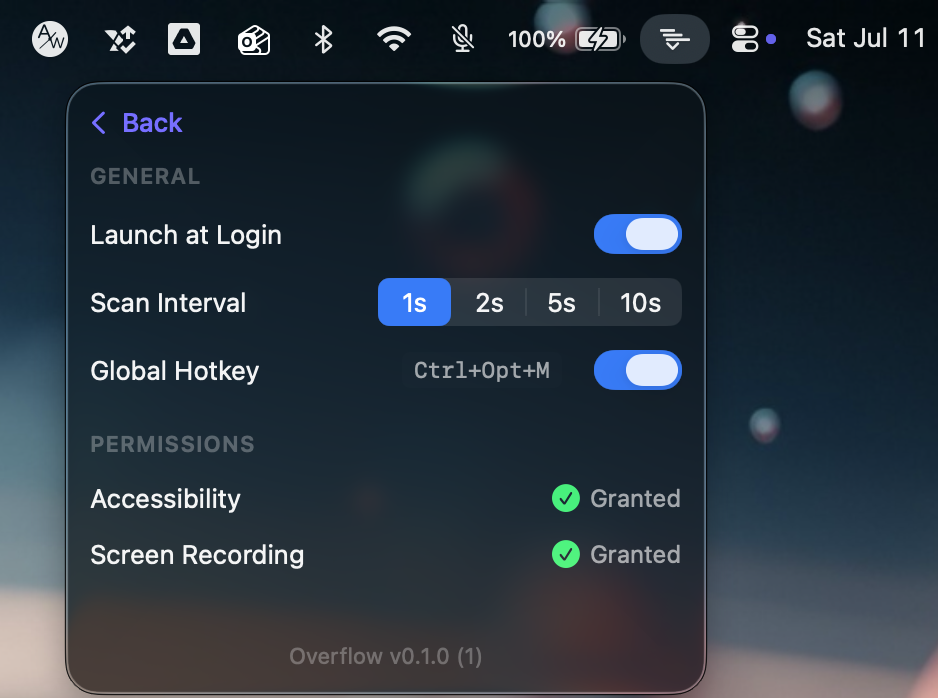
No screen recordings are saved. No menu contents leave your Mac. Overflow makes no network calls and collects no telemetry.
Read the full permissions breakdown →Comparison
How Overflow compares
Outcomes, not feature-count theater. Competitors' genuine advantages included.
| Feature | Overflow | Traditional managers |
|---|---|---|
| How hidden items are accessed | Reads the item's real menu via accessibility | Repositions status-item windows |
| Works with macOS 26 Tahoe's new menu bar architecture | Yes | Window-moving no longer has windows to move |
| Menus open where you click | Yes | At the item's own position |
| Price | $15 per Mac | Varies |
Based on the macOS 26 menu bar architecture, July 2026.
Pricing
One price. No subscription.
Overflow
$15 once
- One license, one Mac.
- Move it to a new Mac anytime.
- Updates included through Overflow 1.x.
- 14-day free trial. No card required.
FAQ
Questions worth answering upfront
Why does Overflow need Accessibility and Screen Recording?
Accessibility lets Overflow read a menu bar item's real menu and activate it on your behalf. Screen Recording lets it see which status items are currently visible and where they sit, since macOS has no public API for enumerating other apps' menu bar icons. Neither permission is used for anything beyond that — see the Permissions page for the full breakdown, or the install guide for the step-by-step grant walkthrough.
Is granting those permissions safe?
Overflow makes no network calls and sends no telemetry. Nothing it reads leaves your Mac, and no screen recordings are ever saved to disk. You can verify this yourself with Little Snitch or Console — there's simply no outbound traffic to see.
What are the trial terms?
The 14-day free trial is the full app — no icon limit, no disabled menu activation, no nags. No card is required to start it. See Getting started for how to use it once it's running.
What's the refund policy?
30 days, no questions asked. If Overflow doesn't work the way you expected, email support and we'll refund you.
Does Overflow support Intel Macs?
No. Overflow is Apple silicon only, and requires macOS 26 Tahoe or later to read the accessibility tree the way it does.
Is Overflow on the Mac App Store?
Not currently. The permissions Overflow needs (Accessibility and Screen Recording on other apps) go beyond what App Sandbox allows, so it ships as a direct download instead.
What happens as macOS or other menu bar tools evolve?
Overflow's approach — reading the accessible menu of hidden items directly, rather than repositioning a status-item window — is built on the accessibility architecture macOS 26 actually uses, not a workaround Apple could remove out from under it. We'll keep shipping updates through the Overflow 1.x line as the platform moves.
How many devices does one license cover?
One Mac per license. You can transfer a license to another Mac any time, right from your Mac — deactivate it on the old one and activate it on the new one. Each additional Mac needs its own license.
How does license activation work?
A license key activates on one Mac. Activation is verified with a cryptographically signed license file stored locally, so the app doesn't phone home on every launch. You can move the activation between Macs whenever you want.
The icon can stay hidden. Click for the menu anyway.
14-day free trial. No card required. macOS 26 Tahoe, Apple silicon.
Download free trial